Thursday, August 13, 2009

Master Detail Group Report Using Crystal Report XI


Report generation Plays a Major Role in Application Project, So I will show you how create a simple report using Crystal Report XI


Say Table A --> Describes the student Details


Table A
Student Id (Primary Key)
Student Name
Student Class


Say Table B --> Describes the Student Fees Paid Details


Table B
Paid Id (Primary Key)
Student Id (Foreign Key)
Paid Amount
Paid Date

Table B will have multiple Entries for Single Entry of Table A


I will Explain Step by Step Method to display in the Crystal Report XI


Step 1: Open Crystal Report XI
Step 2: File-> New-> Standard Report
Step 3: Create New Connection-> OLE DB (ADO) -> Microsoft OLE DB Provider for Oracle
I have mentioned for Oracle Provider, you can select your own data source
Step 4: Service: Server Name; UserId: Username; Password: Password of the server
Step 5: Select the Two Tables from Left Side Pan of Available Data source and Move to Right Side
Step 6: Click Next
Step 7: You will see two tables in the Report Creation Wizard, Now Select the Primary Key of Table A and Drag to Table B’s Foreign Key
Step 8: Select the Line/Link of the two tables and Right Click it Select Link Option
Step 9: Select the Radio Button of Left Outer Join and Press Ok button
Step 10: Click Finish Button
Step 11: Select from Menu Insert-> Group Select the Primary Key of Table A and Select Ascending Order and Press Ok Button
Now you can see Detail Section below Group Section
Step 12: Now place the Table A Details in Group Header Section and Place the Table B Details in Details Section


If you preview, you can see the Table B Details of Every Record of Table A
And you can filter by record selection formula.


Happy To Share!


Monday, August 10, 2009

To Select All Checkboxes in Grid View Using JavaScript

In this I have given simple tip to select all the check boxes in the template field of a gridview
Using JavaScript,

Place the JavaScript where the gridview you have to bind

JavaScript in the Page

<script type="text/javascript" language="javascript">
function fncheckAll()
{
var eleChk=event.srcElement;
var eleTbody=eleChk.parentNode.parentNode.parentNode;
var i=1;
for(i=1;i<eleTbody.children.length;i++)
eleTbody.children[i].children[2].children[0].checked=eleChk.checked;
}
</script>


Grid View

<asp:GridView ID="GridView1" runat="server" AutoGenerateColumns="False" >
<Columns>
<asp:BoundField DataField="CustomerName" HeaderText="Name" />
<asp:BoundField DataField="CustomerAge" HeaderText="Age" />
<asp:TemplateField>
<HeaderTemplate>
<asp:CheckBox ID="chkSelectAll" runat="server" />
</HeaderTemplate>
<ItemTemplate>
<asp:CheckBox ID="chkId" runat="server" />
</ItemTemplate>
</asp:TemplateField>
</Columns>
</asp:GridView>


Code Behind

Protected Sub GridView1_RowDataBound(ByVal sender As Object, ByVal e As System.Web.UI.WebControls.GridViewRowEventArgs) Handles GridView1.RowDataBound
If e.Row.RowType = DataControlRowType.Header Then
CType(e.Row.Cells(2).FindControl("chkSelectAll"), CheckBox).Attributes.Add("onclick", "fncheckAll()")
End If
End Sub

Close Project Coordination -We know who to blame.

Sunday, August 9, 2009

Validating a Textbox in Grid View Using JavaScript

In this post I will show you how to validate a textbox placed in template field of grid view
Say for eg, we have grid view listing Currency and Exchange rate
Where the exchange is in textbox field where you the user can change it
Now we will validate for the currency

If the Currency Code is USD then the exchange rate should not be less that of 3.665

<asp:GridView ID="GridView1" runat="server" AutoGenerateColumns="False" >
<Columns>
<asp:BoundField DataField="Currency" HeaderText="Currency" />
<asp:TemplateField HeaderText="Exchg Rate" >
<ItemTemplate>
<asp:TextBox ID="txtExchgRate" runat="server" ></asp:TextBox>
</ItemTemplate>
</asp:TemplateField>
</Columns>
</asp:GridView>


Code Behind

Protected Sub GridView1_RowDataBound(ByVal sender As Object, ByVal e As System.Web.UI.WebControls.GridViewRowEventArgs) Handles GridView1.RowDataBound

If e.Row.RowType = DataControlRowType.DataRow Then

If e.Row.Cells(0).Text = "USD" Then
CType(e.Row.Cells(1).FindControl("txtExchgRate"), TextBox).Attributes.Add("onblur", "fnValUSDExchg(this)")
End If

End If

End Sub


JavaScript Function

<script language="javascript" type="text/javascript">

function fnValUSDExchg(txtbox)
{
if (txtbox.value<=3.665)
txtbox.value=3.665;
}
</script>

Low Maintenance - Impossible to fix if broken.

To Create an Corresponding Button Event by Hitting on Enter key

I will show you simple tip how to create an event by hitting on enter key after writing some text in corresponding textbox without conflicts in other events
Say if you have two textboxes and corresponding buttons, in which you write text to textbox of the two, corresponding button event should fire when enter key is hit


<asp:Panel ID="Panel1" runat="server" DefaultButton="Button1">
<asp:Button ID="Button1" runat="server" Text="Button" OnClick="Button1_Click" />
<asp:TextBox ID="TextBox1" runat="server"></asp:TextBox>
</asp:Panel>
<asp:Panel ID="Panel2" runat="server" DefaultButton="Button2">
<asp:Button ID="Button2" runat="server" Text="Button" OnClick="Button2_Click" Style="height: 26px" />
<asp:TextBox ID="TextBox2" runat="server"></asp:TextBox>
</asp:Panel>


Savings are achieved when the power switch is off

Thursday, August 6, 2009

Reading Data from Excel file in Asp.net

Create Excel Connection for the Excel file
Then data is read from the sheet and returned as dataset

Protected Function ExcelConnection() As DataSet

Dim xConnStr As String = "Provider=Microsoft.Jet.OLEDB.4.0;" & _
"Data Source=" & Server.MapPath("Uploads/ExcelFile.xls") & ";" & _
"Extended Properties=""Excel 8.0; IMEX=1;"""

Dim objXConn As New OleDbConnection(xConnStr)
objXConn.Open()
Dim dsExcelData As New DataSet
Dim objCommand As New OleDbCommand("SELECT * FROM [Sheet1$]", objXConn)
Dim objAdapter As New OleDbDataAdapter
objAdapter.SelectCommand = objCommand
objAdapter.Fill(dsExcelData)

objAdapter.Dispose()
objCommand.Dispose()
objXConn.Close()
Return dsExcelData
End Function


A Number Of Different Approaches Are Being Tried We're still guessing.

Wednesday, August 5, 2009

Creating Custom Paging With Usercontrol

As we know paging becomes a big issue when we come across huge data which becomes slow and slow when data grows.
Though we have built in paging in grid view they may not be useful in all the cases because, there won’t be lesser data when we come up with live projects.

So here I will show you how to create custom paging in Asp.net 2.0 Web application for customer table

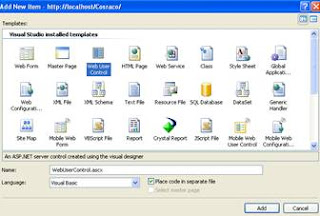
Add new item in the project, Select the Web User Control


Name it as WUCTLPager, and add the code in it


<%@ Control Language@="VB" AutoEventWireup@="false" CodeFile@="WUCTLPager.ascx.vb" Inherits="General_WUCTLPager" %>
<table>
<tr>
<td><asp:LinkButton ID="btnFirst" runat="server" ToolTip="First">< </asp:LinkButton></td>
<td><asp:LinkButton ID="btnPrevoius" runat="server" ToolTip="Previous"> < </asp:LinkButton></td>
<td><asp:TextBox ID="txtPageno" runat="server" Width="60px"></asp:TextBox></td>
<td><asp:LinkButton ID="btnGo" runat="server">Go</asp:LinkButton></td>
<td><asp:LinkButton ID="btnNext" runat="server">></asp:LinkButton></td>
</tr>

Instead of ‘<’ for Previous and all other direction symbols you can use your own images which would look pretty good.
Then add the code Behind of the Usercontrol Page


Partial Class General_WUCTLPager
Inherits System.Web.UI.UserControl

Public Event PageNavigate(ByVal paramPageNo As Integer)

Public Property PageNo() As Integer
Get
Return IIf(IsNothing(ViewState("pageno")), 0, ViewState("pageno"))
End Get
Set(ByVal value As Integer)
ViewState("pageno") = value
txtPageno.Text = value
End Set
End Property

Protected Sub btnFirst_Click(ByVal sender As Object, ByVal e As System.EventArgs) Handles btnFirst.Click
PageNo = 1
RaiseEvent PageNavigate(PageNo)
End Sub

Protected Sub btnPrevoius_Click(ByVal sender As Object, ByVal e As System.EventArgs) Handles btnPrevoius.Click
PageNo = PageNo - 1
If PageNo < 1 Then PageNo = 1
RaiseEvent PageNavigate(PageNo)
End Sub


Protected Sub btnNext_Click(ByVal sender As Object, ByVal e As System.EventArgs) Handles btnNext.Click
PageNo = PageNo + 1
RaiseEvent PageNavigate(PageNo)
End Sub

Protected Sub btnGo_Click(ByVal sender As Object, ByVal e As System.EventArgs) Handles btnGo.Click
PageNo = Val(txtPageno.Text)
RaiseEvent PageNavigate(PageNo)
End Sub

End Class


Write a Query To Retrive Data with Page Number,I have binded the Gridview with datareader
You can do your own logic to bind whether with Dataset, Custom Entity what ever it may be


Public Sub BindCustomer(ByVal PageNo As Integer)

Dim Conn As New OleDb.OleDbConnection
Dim Cmd As New OleDb.OleDbCommand
Dim Query As String
Dim PageSize As Integer

Dim dr As OleDb.OleDbDataReader

PageSize = 10

‘Oracle Query Syntax

Query = "Select * From"
Query = Query & "(Select A.*,ROWNUM row_num From "
Query = Query & "(Select * From Tab_Customer) A "
Query = Query & "Where ROWNUM <=" & PageNo & "*" & PageSize & ") "
Query = Query & "Where row_num >=(" & PageNo & "-1)*" & PageSize & "+1"

Conn.ConnectionString = “Connection String”
Conn.Open()
Cmd.Connection = Conn
Cmd.CommandType = CommandType.Text
Cmd.CommandText = Query

dr = Cmd.ExecuteReader()
gvCustomer.DataSource = dr
gvCustomer.DataBind()

Conn.Close()

End Sub


Then Drag and Drop the Usercontrol to the Page which you want to use the control

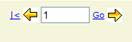
Then the user control would looks like this

Then add the Events to Fire


This event is to fire to search the customer First

Protected Sub btnSearch_Click(ByVal sender As Object, ByVal e As System.EventArgs) Handles btnSearch.Click
Pager.PageNo = 1
BindCustomer(Pager.PageNo)

End Sub

This is the event to Navigate

Protected Sub Pager_PageNavigate(ByVal paramPageNo As Integer) Handles Pager.PageNavigate
BindCustomer(Pager.PageNo)
End Sub


Happy To Share!!